 OurDance
OURDANCE / User guide
Turn a video into a practice.
Open media, slow it down and save a Loop. Use beats and dance counts to place every movement.
Screenshots show real iPhone Simulator sessions with demo media. Earlier workflow captures remain equivalent; the new storage steps follow the verified 1.1.4 native UI and have no new screenshot yet.
1.1.6 adds Traditional Chinese. Choose it in Settings → Language or follow the system. Other workflows are unchanged from 1.1.5. Check Settings for your installed version.
Using version 1.0? Open the previous guide ↗No match. Try another word.
Start a practice
Open a video or audio file you already have. Each media file has its own practice, including saved Marks, Loops, beat corrections and playback settings.
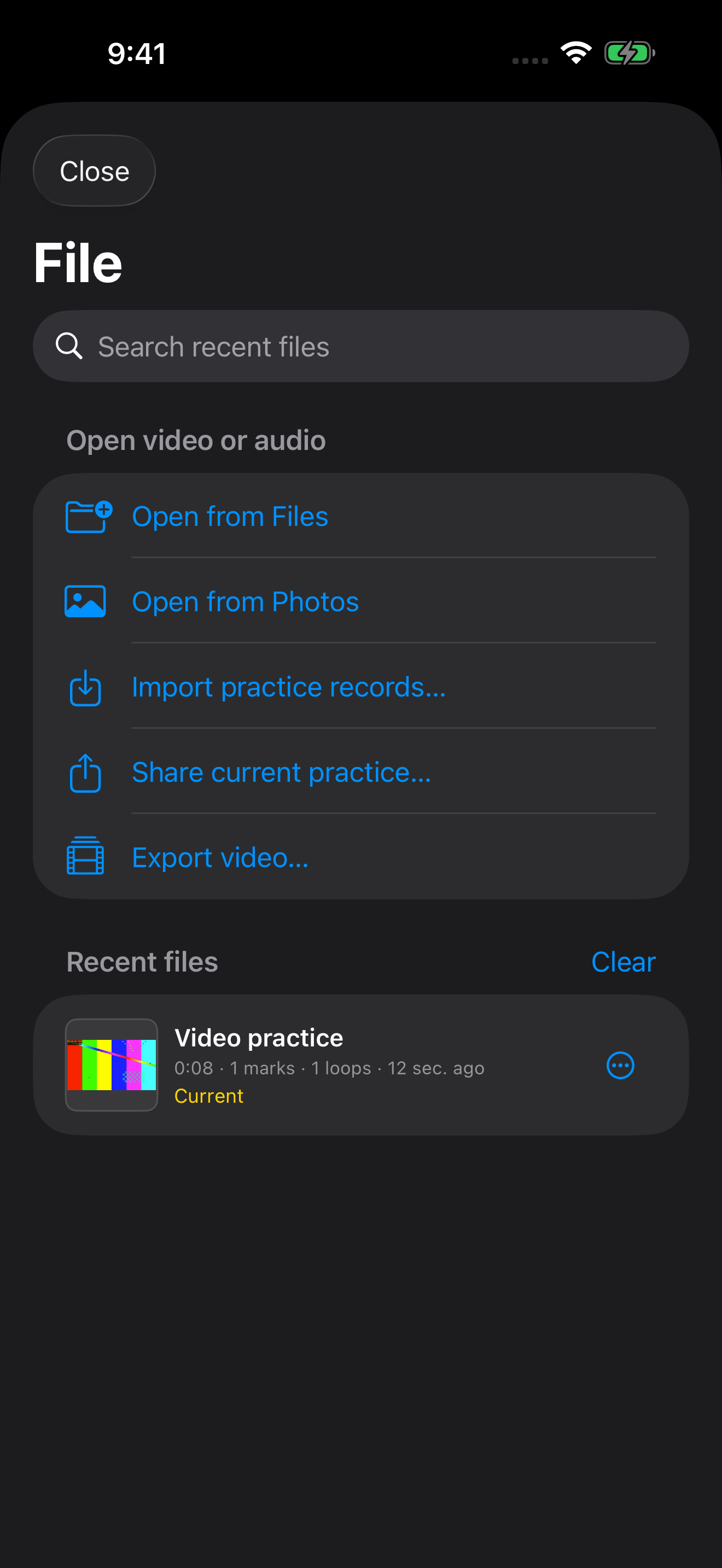
- Tap the folder at the top, then open from Files or Photos. You can also share supported media to OurDance from another app.
- Return through Recent Files. A video thumbnail appears to the left of its name, taken at its midpoint: about 30 seconds into a one-minute video.
- Reopening identical content reuses its practice where possible. Edited or re-encoded copies may count as different media.
- If the original is moved or removed, relink it when prompted. Keep your practice and annotations rather than deleting them to repair the link.
 Zoom ↗
Open media and return to a recent practice
Find your way around
Pro keeps editing tools close; Focus reduces controls. Loops & Marks manages saved items.
On iPhone Duo, use the outer or inner display in portrait or landscape. Folding, unfolding or rotating while practice is paused keeps the practice, playback position, Marks and Loops.
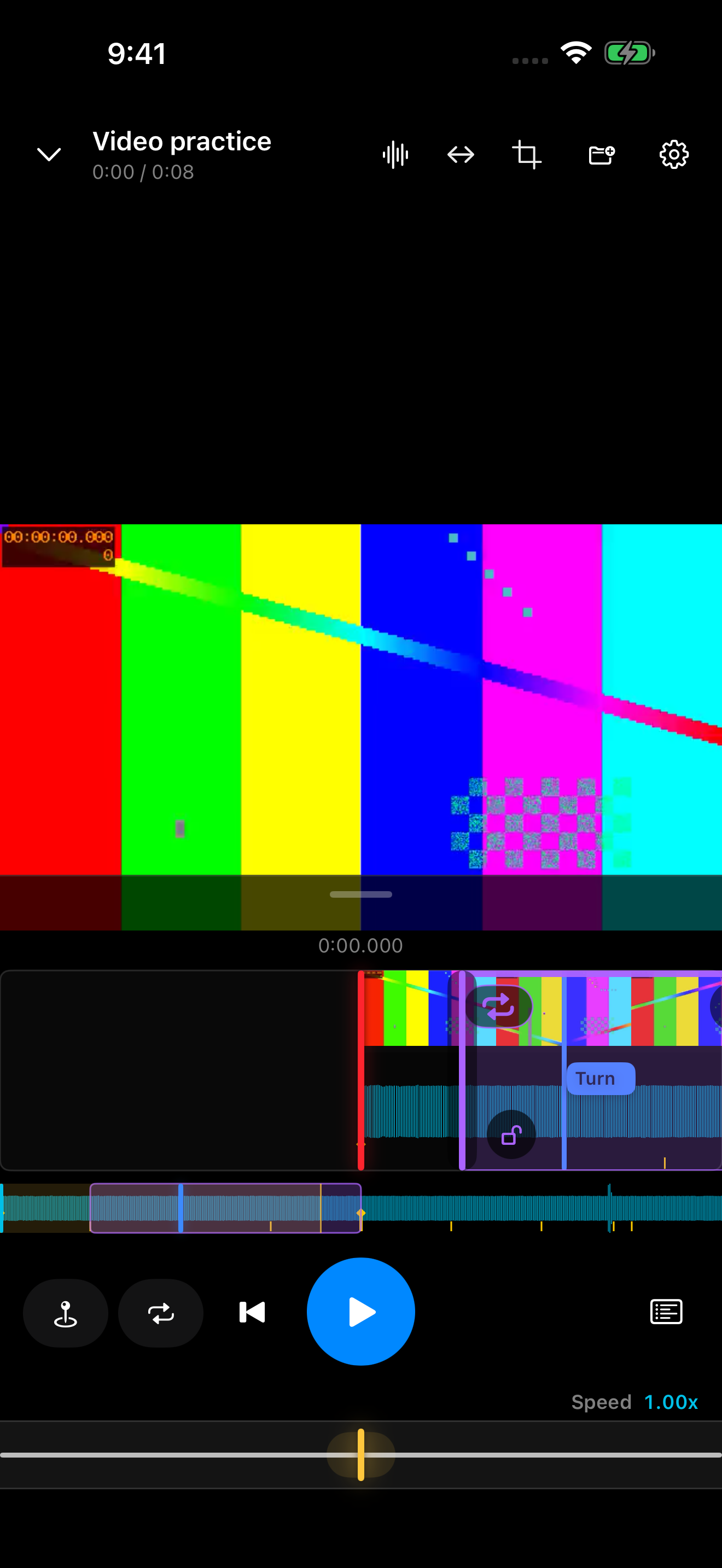
- Top controls include files, mirror, crop, audio-only and settings as available.
- Video and normal audio Pro share six centered controls: Mark, Loop, restart, play/pause, Loops & Marks, and the Beat Corrections pencil.
- Precise time, detail timeline and overview sit below video; speed is at the bottom.
- Pinch to zoom and drag to reposition.
 Zoom ↗
Video Pro entry example (native 1.1.1 capture)
Slow down, mirror and restart
Slow playback helps you study movement. Mirroring makes facing the screen easier. Playback settings do not overwrite your original video.
- Drag the bottom speed slider and read the multiplier beside it. For finer adjustment, hold the yellow needle for about half a second, then drag along the precision dial.
- Tap the opposing-arrow mirror icon to flip the picture; tap again to restore it.
- Tap restart beside Play. Inside a Loop it returns to that Loop's start; outside it returns to the beginning of the media.
- Double-tap restart inside a Loop to return to the beginning of the whole video.
Move through the timeline
Use the detail timeline nearby and the lower waveform for the full duration.
- Drag with one finger; pinch the detail timeline to change its time scale.
- Dragging the video detail timeline or Pro overview plays short audible previews. Forward and backward scrubbing both audition a short forward-playing fragment.
- Releasing restores the previous play or pause intent. Explicit scrubbing outside a Loop exits it.
- The cyan Beat Corrections overview window changes the view without editing beats.
Create, enable and lock a Loop
A Loop saves a time range. Selection and enablement are separate.
- Create one with Loop and drag its boundaries.
- A loop arrow means enabled; a slashed loop means disabled.
- Playback entering from outside does not start looping. Activate in Loops & Marks closes the list, jumps to the start and enables the Loop.
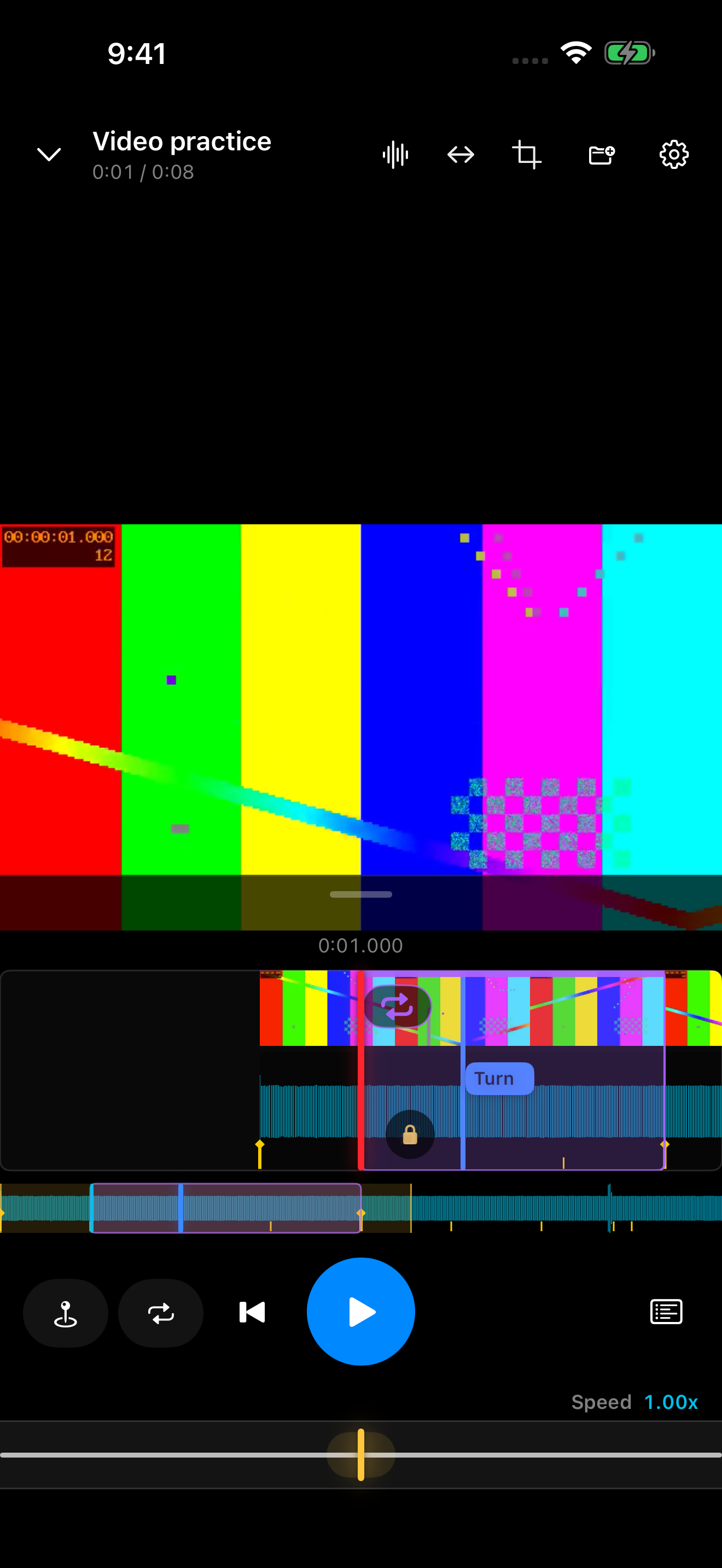
- A locked Loop can still be enabled/disabled, renamed and activated, but not deleted, moved, recolored or resized.
- Tap the lock again to unlock.
An enabled fractional-start Loop can play to the file end and return to its start. Scrubbing outside it or activating an outside Mark exits normally.
 Zoom ↗
Loop controls and its inline lock
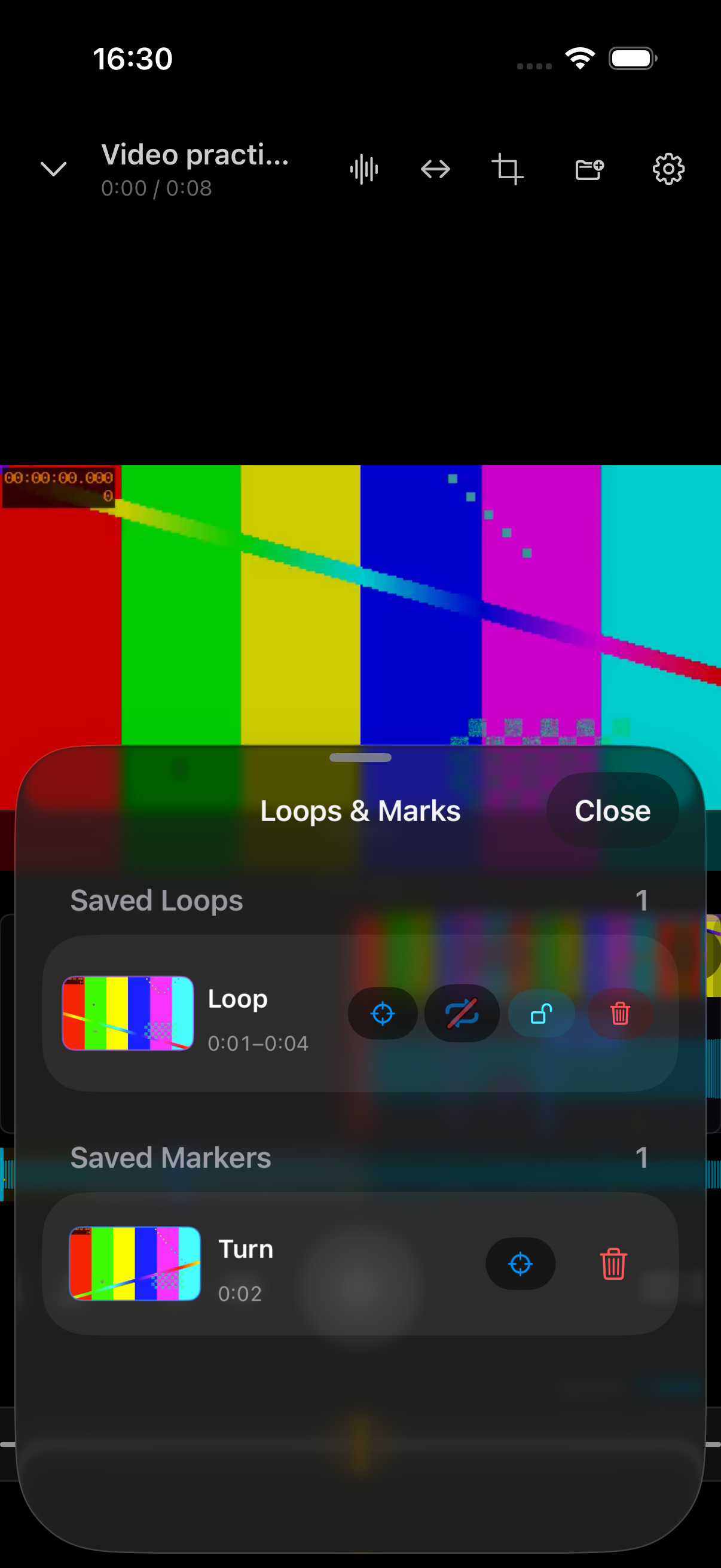
Save Marks and manage clips
A Mark saves a position; a Loop saves a range.
- Add and rename a Mark. It lifts slightly while dragged and settles at the saved time on release.
- Loops & Marks shows Loops above Marks; create new items on the practice surface.
- Activate enables and jumps to a Loop or jumps to a Mark, closes the list and preserves play/pause.
- A locked Mark can still be renamed and activated but not moved, recolored or deleted. A locked Loop can still be enabled/disabled, renamed and activated but not resized, recolored or deleted.
- Normal audio and video Pro share the six playback controls; manage saved items in Loops & Marks.
 Zoom ↗
The thumbnail list for Marks and Loops
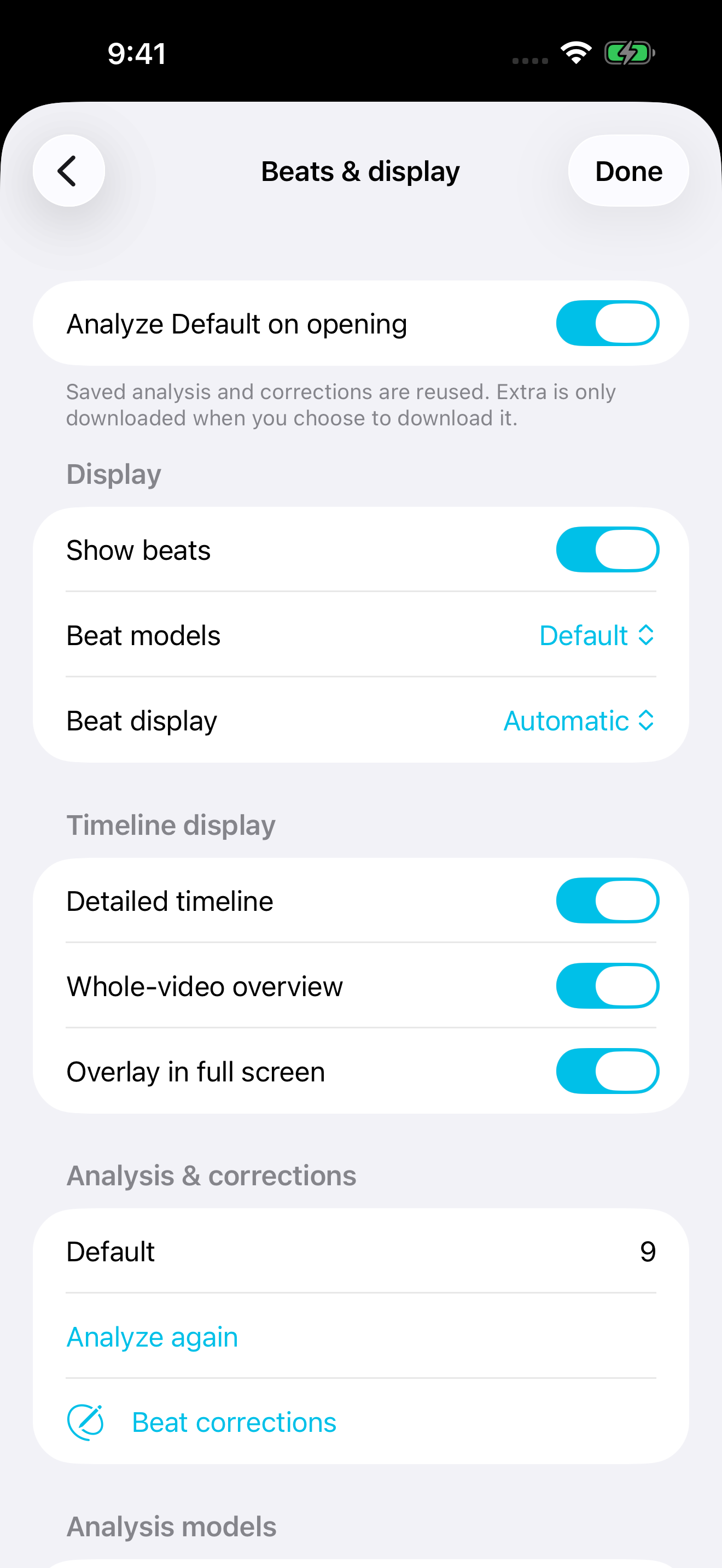
Beats and dance counts 1–8
Automatic beats are timing guides; you confirm dance Count 1.
- Default runs when video or audio opens and reuses saved results; download Extra only when needed.
- Open Beat Corrections with the pencil in shared playback controls. Beats & display manages beat lines, Count, models and timelines.
- Set the correct beat to 1; 1 is yellow, 5 lavender and the others white.
- Use ×2 on a range when midpoint beats are needed.
- Choose the edited model/version and global Count source separately.
 Zoom ↗
Beat, Count and model display settings
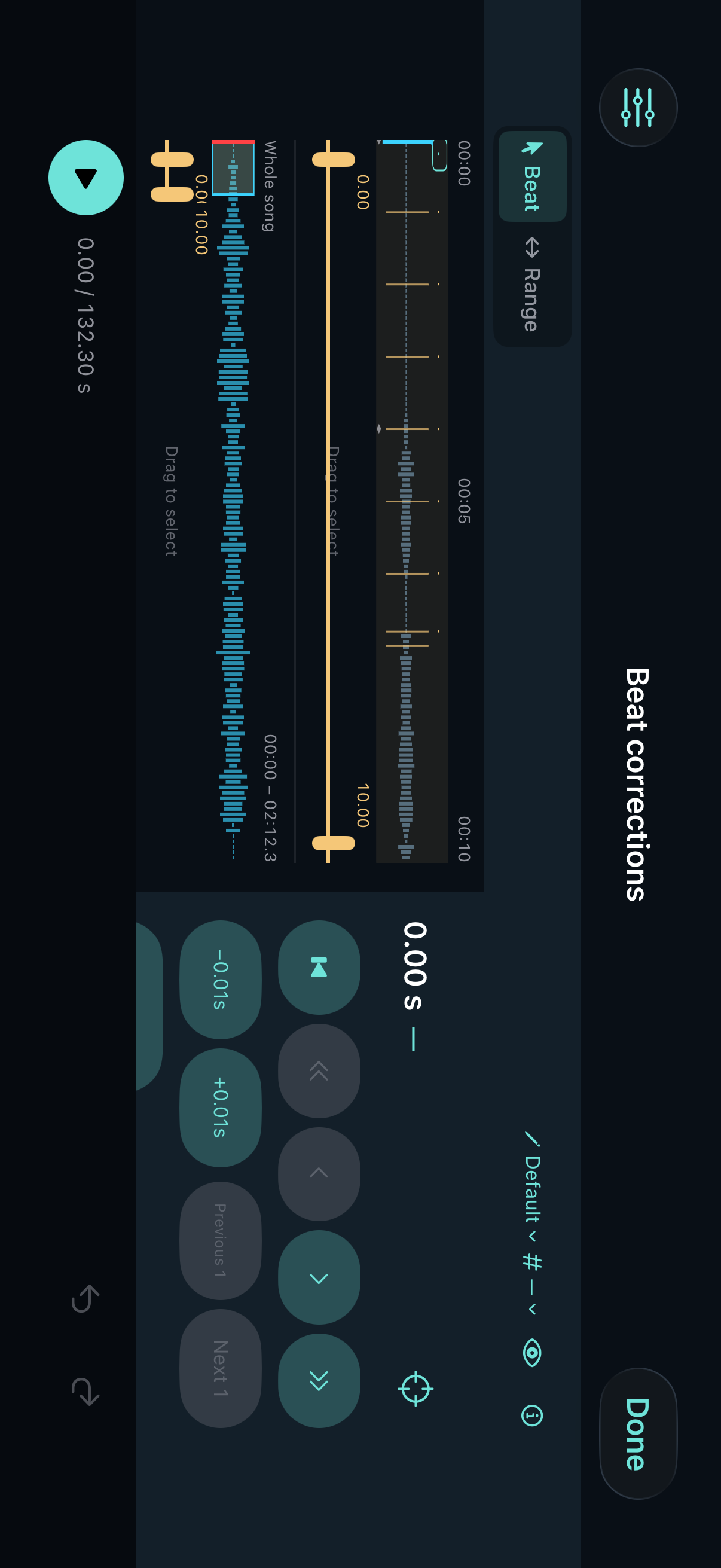
Adjust one beat precisely
Tap the shared playback pencil. Beat Corrections opens in Beat without the old filename row. Beat, Range and Add keep equal waveform height; Undo/Redo is only in the fixed footer.
- Row one goes to exact zero, previous/next model bar, or previous/next effective beat.
- Row two is Set this beat to 1, Previous 1 and Next 1; the last two navigate manual Count 1 anchors only.
- Row three is Add, Ignore/Restore (Delete for an inserted beat), −0.01s and +0.01s. Valid actions save immediately.
- You can also hold an effective beat for about 0.3 seconds and drag it.
- Precise tools provide numeric time, history/recovery and Manual Reanalyze. Reanalysis creates another version while preserving earlier versions, manual 1 anchors, corrections and Count source, without silently switching.
 Zoom ↗
Beat Corrections actions in 1.1.2
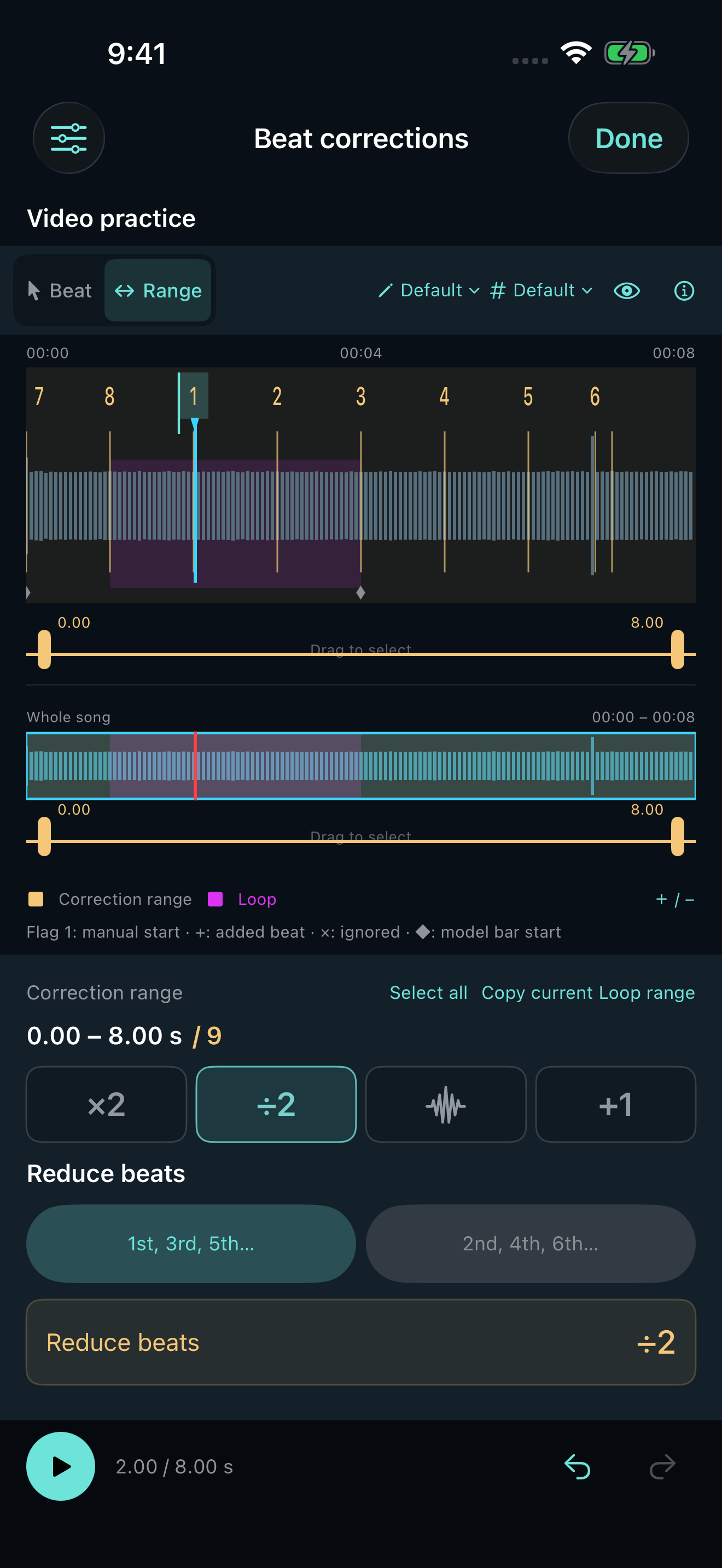
Add or reduce beats in a range
Detail can be pinched and panned; Whole song stays full length. Beat, Range and Add keep equal waveform height.
- Choose Range and drag the selection or handles; Select all and Copy current Loop are available.
- Choose ×2, ÷2, Use Reference or +1, then run its action below.
- ×2 inserts midpoints; ÷2 can retain odd- or even-positioned beats in the selection.
- +1 extends using the median interval of at least two effective beats.
Tool selection alone does not edit; Undo is in the fixed footer.
 Zoom ↗
The four tools and Reduce Beats options
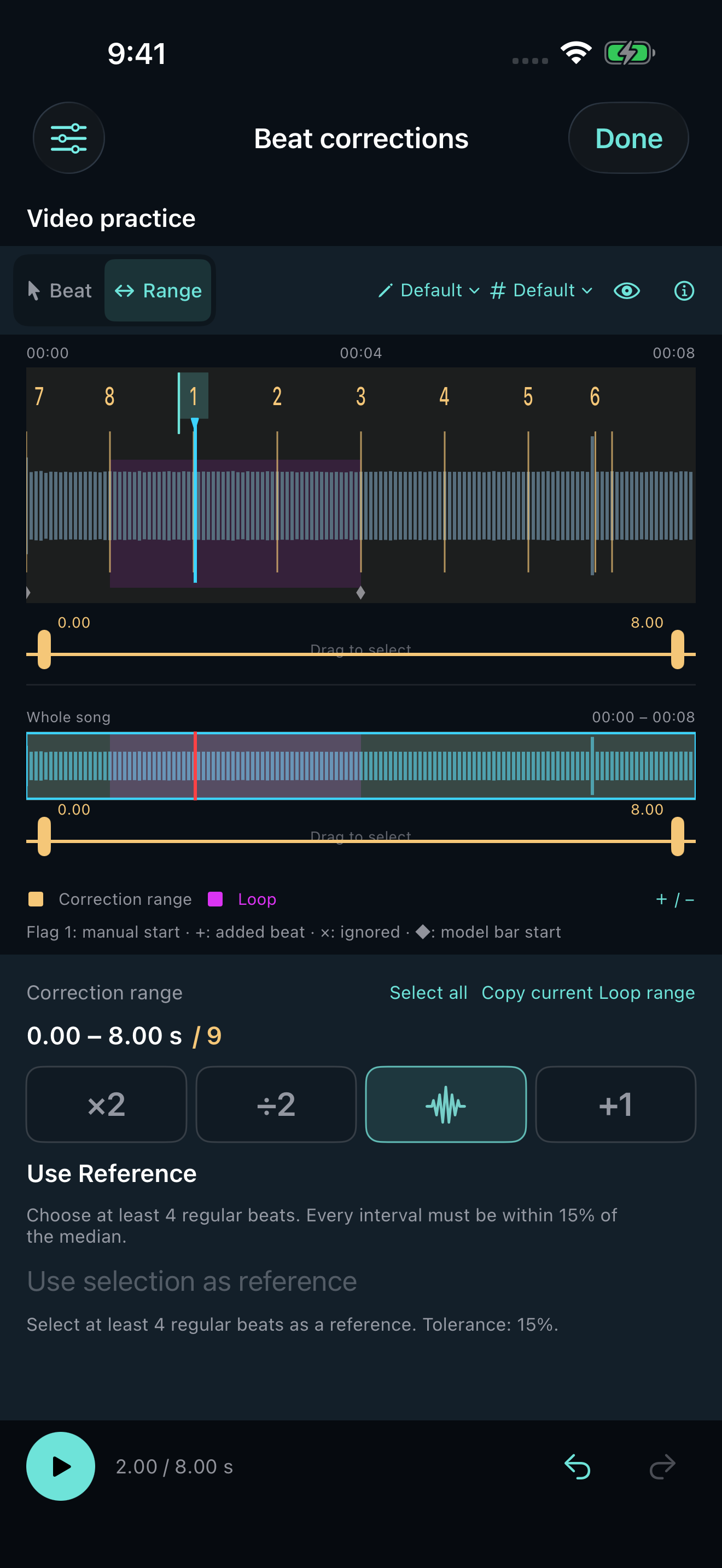
Use a regular passage as a reference
Use Reference targets missing or extra beats using the rhythm of a regular passage, instead of multiplying every gap.
- Select at least four regular effective beats, then choose the waveform tool, Use Reference.
- Choose Use selection as reference and check its interval. The reference stays fixed; the target defaults to the whole song and can be narrowed.
- Reference add/reduce acts on matching irregularities. Regular or uncertain passages are retained.
- Review the result and any sections flagged for checking. The reference passage is unchanged, and one undo reverses the operation.
 Zoom ↗
Use a reference passage to repair timing
Audio practice and instrument stems
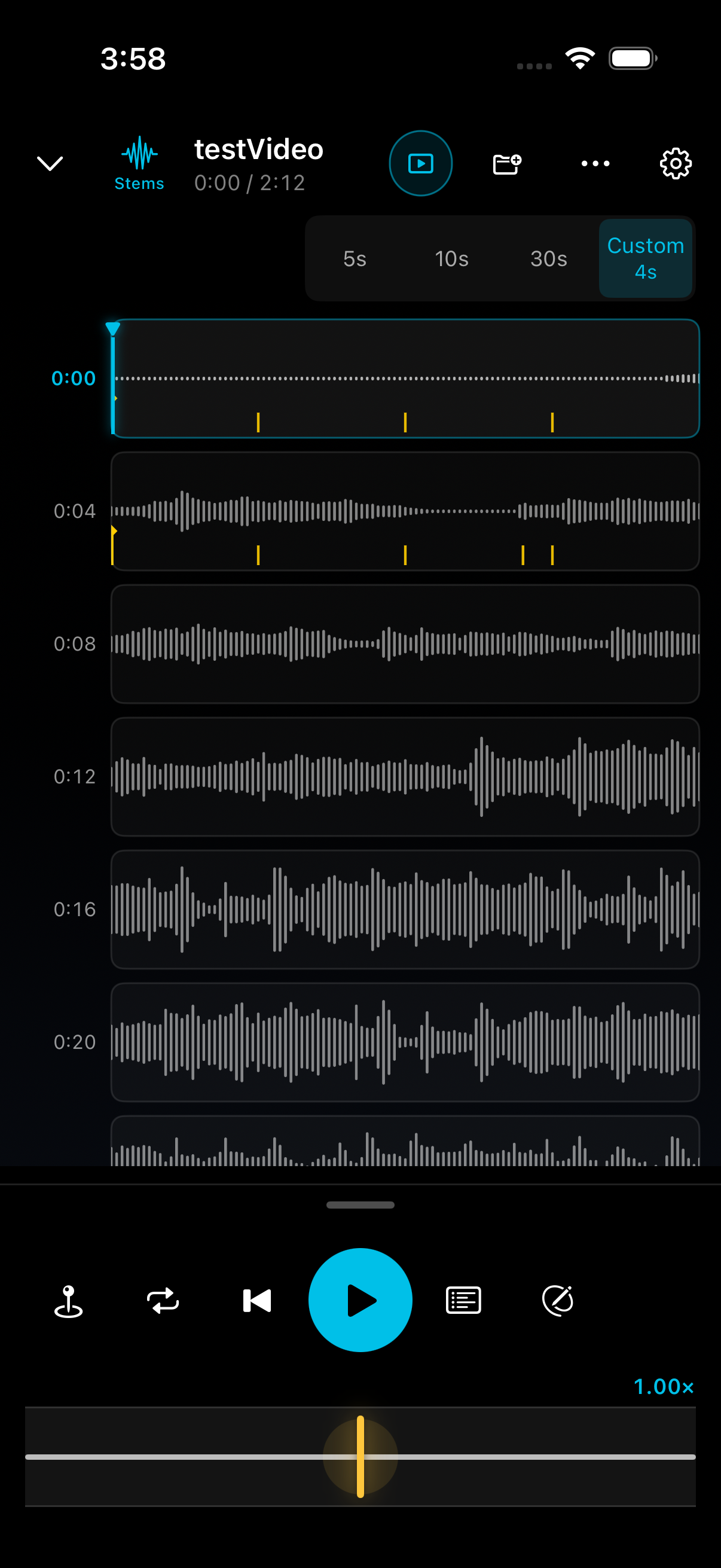
The audio waveform shows 5, 10, 30, or a Custom 1–600 seconds per row. This changes the view and does not skip playback.
- Open Stems, download the model when prompted and start separation; you can cancel.
- Select tracks to hear; separation is an estimate.
- Original / Mix selected stems is one exclusive selector. The highlighted side is what you hear. Solo selects stems; tap Mix selected stems again to restore the full selected mix.
- Tracks share time; pinch to change the visible range.
- Stems keeps playback and speed below. Focus uses presets; Pro uses the continuous slider.
Separation runs on device and does not upload original media.
 Zoom ↗
Audio row duration and shared controls in 1.1.2
Adjust audio gain
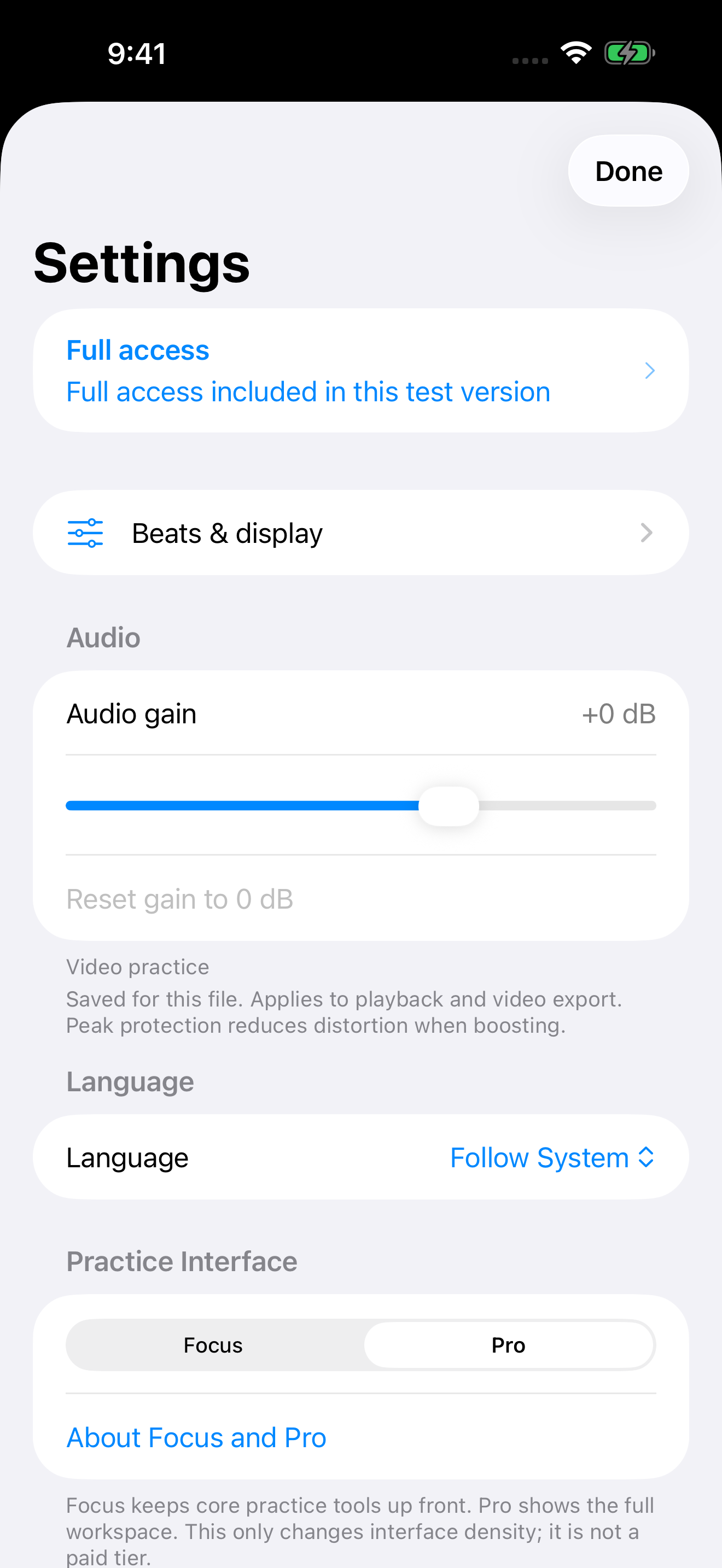
If a recording is too quiet or too loud, open Settings for that media and adjust Audio gain. This is separate from system volume and individual Stem volume.
- Find the Audio gain slider in the current file's settings.
- Adjust from −24 dB to +12 dB; the default is 0 dB and Reset returns to it.
- Gain is remembered for the media and also affects video export. Raising it cannot repair distortion already present in the recording; lower it if it sounds unnatural.
 Zoom ↗
Audio gain in Settings
Fullscreen, crop and video export
When controls are hidden, the large play/pause button at top right remains available; the bottom handle restores controls.
- Crop as needed; Reset restores framing.
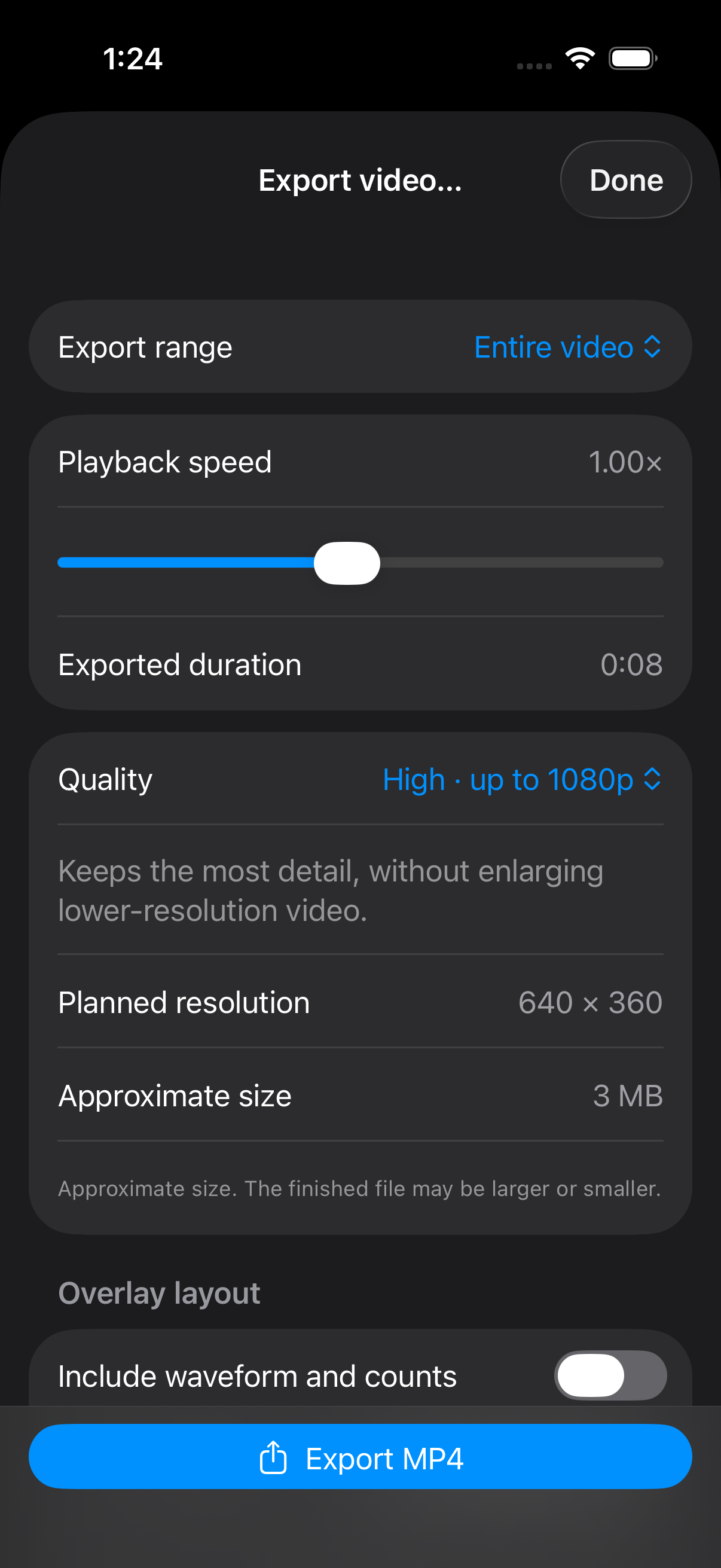
- Choose the whole file or a saved Loop, then an export-only 0.10×–2.00× speed.
- Choose 1080p, 720p or 540p and review planned resolution, duration and estimated size.
- Waveform/Count overlays support top/bottom and small/medium/large. Preview matches output and the footer does not cover it.
- Settings, preview and estimates are free. Encoding and saving MP4 require Full Unlock; finished size appears before Save/Share.
Loop export outputs once. Share practice transfers editable data without source media; Export creates MP4.
 Zoom ↗
Export range, speed, quality and estimate in 1.1.2
Saving, sync and full access
The free version fully saves one practice. Full Unlock is a one-time purchase for multiple saves, lightweight iCloud sync, practice-data import/export, and actual MP4 encoding and saving. Check local price in the purchase screen.
- Settings → Language offers System, English, Simplified Chinese, Traditional Chinese, Japanese, Vietnamese, Thai, French, German and Spanish. Changing it updates the app and Settings title immediately while keeping the current practice and Settings open.
- Beat Correction prompts and errors, import previews, Stems labels and the export purchase prompt follow the selected app language. System errors, filenames and user input keep their original text.
- iCloud sync carries practice data, not the whole original video.
- Opening, previewing or cancelling Share current practice preserves loaded beats, corrections and Stems state; shared records omit source media. When importing from the system share sheet, the OurDance Share extension provides import status and product errors in the same nine languages.
- Use the appropriate same Apple accounts across devices and check sync status.
- Restore Purchases is in Settings; verified access remains usable offline after reopening.
- Some TestFlight Alpha builds include full access; this is not a production purchase.
- Eligible earlier production users may receive legacy access after app verification.
Storage management and bulk cleanup
Open Storage Management from Settings or Files to review local media, caches and unassociated files. Check each name, size and eligibility reason; files with uncertain ownership or references stay in place.
Remove eligible unassociated files one at a time or as a confirmed batch. The batch shows preparation, then the current file, processed count and progress bar. Skipped and failed files also count as processed.
The result shows actual removals, skips and failures separately. Keep a recoverable copy of your original videos; this cleanup does not remove practices, Loops, Marks or cloud data.
Help and Apple Watch
No sound? Check device volume, the active track, Solo/mix selection and audio gain. Cannot play? Reopen the item from Recent Files and check that the media is still accessible.
Counts do not match? Check the editing model, Count source and manual “1”. Add or reduce beats in the correct range if needed.
The Apple Watch companion shows the practice title, playback state and time, and controls restart and play/pause. Open a practice on the paired iPhone first; the phone remains the media and editing device. Watch interface text is available in the same nine languages.
For account-verification or local-library errors, update and try Check again. Keep your data and avoid uninstalling as a first step. Vietnamese, Thai, French, German and Spanish app languages still open this English web guide first; use the language links at the top to switch to the matching guide. Email [email protected] with the app/build version, system version, steps and diagnostic screenshot. Never send your password.